Showing posts with label Horizon Workspace. Show all posts

Wednesday, September 25, 2013

Horizon Data - Storage


I use Horizon Data everyday, and it really is amazing how easy it is to work with. However, maybe it’s my storage background, but I can’t help but wonder what happens to my file after I’ve uploaded it into my Horizon Data folder.

Where does it go?

Horizon Data is integrated into Horizon Workspace – which means that it’s part of the Workspace vApp.


The Horizon Data VM, which obviously handles the Files / Data side of things in workspace, includes several VMDKs (which are, fortunately, thin provisioned).
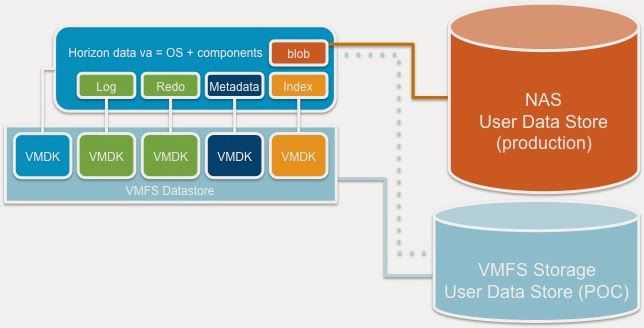

If you’re running a small-scale deployment (e.g. an evaluation or demo environment), you can stick with the default configuration of having Horizon Data store things inside the VMDKs.

In production environments, however, it is recommended to use NFS storage for Horizon Data (how to add an NFS mount is documented here).
It’s worth noting that this NFS volume will be mounted into the VM, not to the ESXi Host(s).
This means that the NFS traffic will be using the VM Network that the Horizon Data VM is connected to, rather than a VMKernel connection to the ESXi Hosts – so it’s worth considering whether this network will have connectivity to your NFS storage array as well as how much available bandwidth / performance there will be for NFS traffic on that network.

In any case, they key thing to bear in mind is that Horizon Data uses a mysql database to index the files that users upload. Mysql then stores these files as Blobs.


What is a Blob?
Image courtesy of wikipedia

A Blob is a Binary Large Object, which is basically a method for storing pretty much any kind of file within a table in a database.

To me, this makes a lot of sense – rather than having unstructured data scattered around a filesystem, the database keeps everything neat & tidy.

I like to think of it like this…back in 2002, I converted most of my CD collection into MP3s, and went to a lot of trouble to keep my MP3 files organized – each artist had a folder, and inside there was a folder for each album.
I started off with about 5GB of Music, which was probably like 30 folders of stuff. At the time, I used to browse through the folders, find things I wanted to listen to, then drag them into a music player (I was a big fan of WinAmp!).

11 years later, and I now have nearly 40GB of Music. I’ve been through 6 laptops in that time, and 3 USB hard drives.
The last time I looked at my Music folder, it was a mess. There was a bunch of duplicate files & folders, things in the wrong place, things missing (some laptop migrations were a result of hard drive failures!).
So, browsing through the folders and dragging things into a music player just doesn’t work.


The last time I migrated my laptop, rather than copy the files over myself, I used iTunes to import everything, with these 2 options set:


Now, I see all my music in one place, and click on whatever I want to play. I don’t care where iTunes stores each file. If & when I need to migrate off this laptop, I’ll just Export my iTunes Library.


So, getting back to Horizon Data.
Here’s a file I made earlier, and uploaded into my Horizon Data folder.

If I log into the Horizon Data VM (as root), I can navigate through to the directory where the blobs are stored (/opt/zimbra/store).

Inside that directory, mysql has structured things very carefully. Here’s what the blob looks like:


The path, as well as the filename are both important. AFAIK they relate to tablespaces etc within the database, I’m sure someone who understands mysql better than I do can tell you all about it. 

If I look at that .msg file, you can see it’s actually the .txt file I uploaded into my Horizon folder.

So, Horizon Data has changed the filename & extension, and manages it’s own directory structure to store things, but the actual content of my file hasn’t been modified.
From a storage perspective, this means that any block based deduplication should work very well for files stored by Horizon Data.
File based single instancing (leaving behind stub files etc) wouldn’t be a good idea, but anything block based which is invisible to the filesystem and preserves the file & directory structure should work very well at freeing up disk space.
I’d be very interested to see someone do some testing with this & see what kind of dedupe ratios they achieve.  

Monday, August 19, 2013

Installing VMware Horizon Workspace

Last week I spent some time installing Horizon Workspace to create a new demo environment.

Workspace is distributed as a vApp, which you can download here:
http://www.vmware.com/products/desktop_virtualization/horizon-workspace/resources.html

Personally, I quite like the idea of disributing software as a vApp - especially one that pretty much self-configures the way workspace does (more on that later).
However, it can't do all the work for you - there's a few things you need to make sure you have checked or setup before you start:

Check vCenter for previous versions of Horizon Workspace.
I installed v1.5, but I've heard of several people who got tripped up by "stuff" hanging around in vCenter from previous installations.
So, the first thing to do is make sure, if you have a previous version of workspace registered to your vCenter server, shut it down and either remove it from the inventory or delete it from disk.
You should also remove the extension from vCenter, which will involve using the Managed Object Browser (MOB).
There's a good guide to using the MOB here: http://www.virtuallyghetto.com/2010/07/how-to-unregister-vcenter.html 

The Horizon Workspace extension isn't easily to identify. Here's what one of mine looked like:
As you can see, there isn't really anything in the properties that says Horizon or Workspace. In fact, even the version number is wrong (this is from a v1.5 install!).


The best way I've found of identifying which extension related to Horizon Workspace is to basically rule out all the others.
Within the vSphere Client, vCenter can give you a more user friendly list of extensions:
Here's what the extension looks like in vCenter
So, from here we can work out that the extension we need to unregister has a version number of 1.0.0. 
Depending on how many extensions you have, it shouldn't be too much trouble to identify which one is Horizon Workspace.

Add an IP Pool & Network Protocol Profile
When you deploy the vApp, it will check to see if you have this configured. 

You can create an IP Pool in vCenter via the vSphere client & associate it with the virtual network that you want to deploy Horizon Workspace to, but it seems that the network protocol profile is something that you can only do in the vSphere Web Client today:


Oh, and remember, if you plan to use fixed IP addresses, DO NOT ENABLE THE IP POOL! Although the vApp checks to see if it's there, if you deploy the vApp using fixed (static) IP addresses and the IP Pool is enabled it actually seems to trip up the configurator-va so leave it disabled:

Assign Static IP Addresses for the vApp
You'll need 5 IP addresses for the vApp, one for each machine:
configurator-va
connector-va
data-va
gateway-va
service-va

I'd recommend keeping a few addresses spare in case you need to deploy additional instances of the data-va (more on this will follow in a future post).

Setup DNS entries & reverse lookups for the vApp VMs
This bit is particularly important. When you fire up the vApp, the configurator-va VM will test DNS to see if this has been configured - if it hasn't, the vApp won't deploy. 
Incidentally, I also found that sluggish performance from my DNS server also tripped me up - I later realised this was down to a network configuration issue - but it's worth bearing in mind that Horizon Workspace is sensitive to the response time it gets from DNS.

SMTP Server
You'll need one of these! Again, this is something the configurator-va will ask for, and if it can't see your SMTP server, the installation won't proceed.
Here's a guide I found useful for setting up an SMTP server on Windows 2008 R2:
Here's my SMTP server all setup:


NTP ConfigurationI'm actually not sure if this is essential, but I did notice that the configurator synchronises the time across all the VMs in the vApp, so I thought it would be a good idea if that time was actually correct.
So, in my case I setup my domain controller to act as an NTP server and told all my ESXi hosts to get their time configuration from that.

With all that done, you should be fine to deploy the vApp. Here's what the installation process looked like for me:
First upload the vApp. As you can see, it very helpfully tells you how much disk space you'll need to deploy it!

I'm using fixed or static IP addresses, and yes I did make sure that my IP Pool isn't enabled!

Once you've deployed the vApp, fire up the configurator-va and it will begin prompting you for the information it needs to setup the other VMs in the vApp.

As you can see, the first thing the configurator will do is check if DNS is working properly.

A few steps later, and the configurator has all the info it needs. Now it's going to power on all the other VMs in the vApp and start pushing down their configuration. 

When it's all done, you should see this! Hit enter, and you'll be ready to start configuring Horizon Workspace.

And here's the web portal that we'll use to configure Horizon Workspace  - I'll do another post on that soon!